
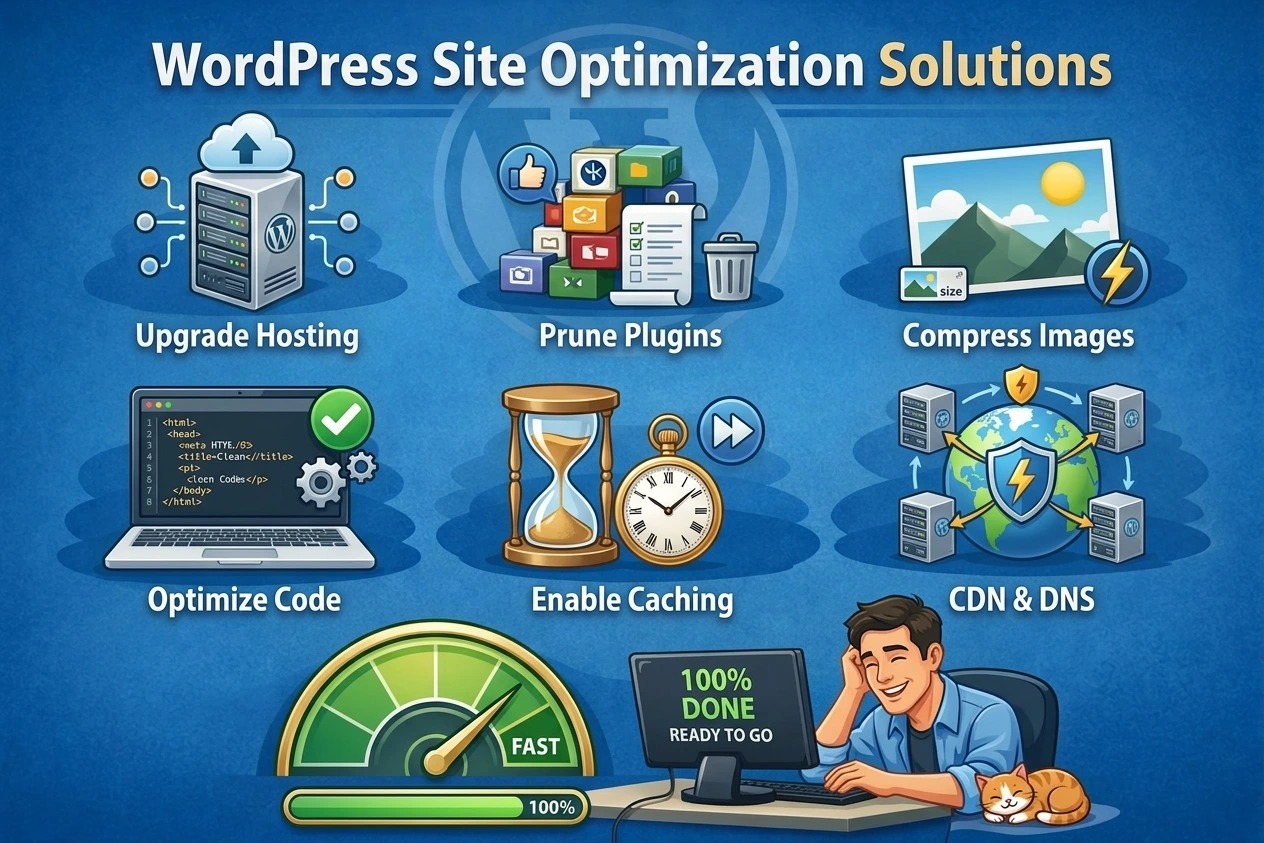
Is your WordPress website loading slowly? You are not alone. A slow WordPress website can hurt user experience, increase bounce rates, and make it harder for visitors to navigate your site.
But why is my WordPress website slow in the first place?
There are many possible reasons. Your hosting provider, large images, poorly optimized plugins, excessive JavaScript, unoptimized CSS, caching problems, database overhead, and third-party scripts can all affect WordPress website speed.
The good news is that most WordPress performance problems can be identified and fixed.
In this guide, we will explain the most common reasons for a slow WordPress website and show you practical ways to improve WordPress performance.
Why Is My WordPress Website Slow?
If you are asking, “Why is my WordPress website slow?”, the answer usually isn’t a single problem.
WordPress websites are made up of many components, including:
- WordPress core
- Themes
- Plugins
- Images and media
- CSS and JavaScript
- Database queries
- Web hosting
- Fonts
- External scripts
- Caching systems
When one or more of these components are poorly optimized, your website can take longer to load.
Before making changes, it is important to identify what is actually slowing down your website.
1. Poor Web Hosting
One of the most common causes of a slow WordPress website is poor-quality hosting.
Your hosting server is responsible for processing PHP requests, connecting to your database, serving files, and delivering website content to visitors.
If your server has limited CPU, RAM, slow storage, or poor server configuration, your website may remain slow even after optimization.
How to Fix It
Consider using reliable WordPress hosting with:
- SSD or NVMe storage
- Adequate CPU and RAM
- Modern PHP versions
- HTTP/2 or HTTP/3 support
- Server-side caching
- Reliable uptime
- Good server response times
If your hosting environment is consistently slow, optimization plugins alone may not completely solve the problem.
2. Large and Unoptimized Images
Images are essential for modern websites, but large image files can significantly increase page size.
For example, uploading a 5 MB image when the page only needs a 200 KB optimized image creates unnecessary loading overhead.
Large images can be especially problematic on mobile connections.
How to Optimize WordPress Images
Before uploading images:
- Resize images to the required dimensions.
- Compress images.
- Use modern formats such as WebP where appropriate.
- Avoid unnecessarily large images.
- Use responsive image sizes.
- Remove unused images from your media library.
Image optimization is one of the easiest ways to improve WordPress website speed.
3. Too Many WordPress Plugins
Plugins add functionality to WordPress, but installing too many unnecessary plugins can increase the amount of code your website needs to process.
However, the number of plugins alone does not determine performance.
A single poorly coded plugin can have a bigger performance impact than several lightweight plugins.
How to Fix Plugin-Related Performance Problems
Review your installed plugins regularly.
Ask yourself:
- Do I still need this plugin?
- Is another plugin providing the same functionality?
- Does this plugin load assets on pages where they are not needed?
- Is the plugin properly maintained?
- Does it create excessive database queries?
Deactivate and remove plugins that are unnecessary.
Always test your website after removing or replacing a plugin.
4. Too Much JavaScript
JavaScript makes websites interactive, but excessive JavaScript can delay page rendering and increase browser processing time.
Some WordPress websites load JavaScript from:
- Themes
- Plugins
- Analytics tools
- Advertising platforms
- Chat widgets
- Social media integrations
- Tracking scripts
When too much JavaScript is loaded, visitors may have to wait longer before the page becomes fully interactive.
How to Optimize JavaScript
Depending on your website, you may be able to:
- Defer non-critical JavaScript.
- Delay non-essential scripts.
- Remove unused scripts.
- Load scripts only when required.
- Reduce third-party JavaScript.
- Minify JavaScript files.
Be careful when optimizing JavaScript.
Aggressive JavaScript optimization can sometimes break menus, sliders, forms, headers, or other interactive elements.
Always test your website after enabling JavaScript optimization.
5. Unoptimized CSS
CSS controls the visual appearance of your WordPress website.
Large or inefficient CSS files can increase page size and delay rendering.
This can become more noticeable on websites using page builders and multiple plugins.
How to Optimize CSS
Possible optimization techniques include:
- Minifying CSS.
- Removing unused CSS.
- Loading critical CSS efficiently.
- Reducing unnecessary stylesheets.
- Avoiding duplicate CSS.
- Loading CSS only where required.
However, CSS optimization needs to be handled carefully.
If important styles are removed or loaded incorrectly, your website design can break.
This is why you should always check your homepage, header, navigation, forms, mobile layout, and important landing pages after changing CSS optimization settings.
6. No Page Caching
Without caching, WordPress may need to process PHP code and database queries every time a visitor requests a page.
Page caching can store generated page output so that subsequent visitors can receive the cached version more quickly.
This can significantly reduce server processing for many types of WordPress websites.
How Page Caching Helps
A caching system can help:
- Reduce server workload.
- Reduce PHP processing.
- Improve response times.
- Serve pages faster.
- Handle more simultaneous visitors.
For many WordPress websites, page caching should be one of the first performance improvements to consider.
7. An Overloaded WordPress Database
WordPress stores content and settings in a database.
Over time, your database may contain unnecessary information such as:
- Post revisions
- Auto-drafts
- Spam comments
- Trashed content
- Expired transient data
- Unused metadata
A poorly maintained database can contribute to performance issues, although database cleanup is not always the primary cause of slow frontend loading.
How to Improve Database Performance
Regularly review your database and remove unnecessary data when appropriate.
Before making database changes:
Always create a complete backup.
Database optimization should be performed carefully because deleting the wrong data can affect your website.
8. Too Many External Requests
Your website may depend on resources from external services.
Examples include:
- Google Fonts
- Analytics
- Advertising networks
- Social media widgets
- Chat services
- Video embeds
- External APIs
Each external dependency can introduce additional network requests and potential delays.
How to Reduce External Requests
Review third-party services and remove anything that isn’t necessary.
For resources you do need, consider whether they can be:
- Loaded later.
- Loaded conditionally.
- Self-hosted where appropriate.
- Reduced or replaced with a lighter alternative.
Reducing unnecessary third-party resources can improve both performance and reliability.
9. Too Many Fonts and Font Weights
Typography is an important part of web design, but loading many fonts and font weights can increase the number of requests and the amount of data browsers need to download.
For example, loading multiple families with several weights can create unnecessary overhead.
Better Font Practices
Try to:
- Use fewer font families.
- Load only the font weights you actually use.
- Avoid unnecessary font variations.
- Consider modern font delivery techniques.
- Use system fonts when appropriate.
A simpler font setup can help reduce page weight.
10. Your WordPress Theme Is Not Optimized
Your theme controls a large part of the frontend structure of your website.
Some themes include many features, scripts, styles, animations, and components that you may never use.
A feature-heavy theme can therefore contribute to a slower WordPress website.
How to Improve Theme Performance
Choose a lightweight and well-maintained theme.
Also check whether your theme:
- Loads unnecessary assets.
- Includes excessive JavaScript.
- Uses large CSS files.
- Loads resources on every page.
- Includes unnecessary animations or features.
If you are using a page builder, make sure your theme and builder are configured efficiently.
11. Page Builders Can Add Extra Overhead
Page builders make it much easier to create complex WordPress websites without writing everything manually.
However, complex layouts can sometimes generate additional HTML, CSS, and JavaScript.
This doesn’t mean you should avoid page builders.
Instead, focus on building efficient layouts.
Tips for Better Page Builder Performance
Avoid unnecessarily complicated nested sections and widgets.
You can also:
- Remove unused widgets.
- Reduce excessive animations.
- Optimize images.
- Avoid unnecessary third-party addons.
- Keep layouts simple where possible.
- Optimize CSS and JavaScript carefully.
A clean page structure can help reduce unnecessary frontend work.
12. Your Website Has Too Many Animations
Animations can make a website look modern and engaging.
However, excessive animations can increase CPU usage and require additional JavaScript or CSS processing.
This is particularly important for visitors using mobile devices or lower-powered hardware.
How to Fix Animation Performance Problems
Use animations selectively.
Avoid animating large numbers of elements simultaneously.
For better performance:
- Prefer lightweight CSS animations when possible.
- Avoid unnecessary JavaScript animations.
- Reduce complex visual effects.
- Test animations on mobile devices.
Good design doesn’t require every element on a page to move.
13. Your WordPress Website Has Too Many HTTP Requests
Every CSS file, JavaScript file, image, font, and external resource may require a browser request.
A page with many resources can therefore take longer to load.
The goal isn’t necessarily to eliminate every request, but to avoid unnecessary ones.
How to Reduce HTTP Requests
You can:
- Remove unnecessary plugins.
- Reduce unnecessary assets.
- Combine files where appropriate.
- Remove unused CSS and JavaScript.
- Optimize images.
- Reduce third-party services.
Modern HTTP protocols have changed how browsers handle requests, so blindly combining every file isn’t always the best approach.
Optimization should be based on actual performance testing.
14. Your Website Has No CDN
A Content Delivery Network, or CDN, stores or serves static resources from locations closer to your visitors.
This can be useful if your visitors are located in different countries or regions.
A CDN can help deliver assets such as:
- Images
- CSS
- JavaScript
- Fonts
- Other static files
If your audience is geographically distributed, a CDN can be an important part of your WordPress performance strategy.
15. Your Cache Is Misconfigured
Installing a caching plugin doesn’t automatically guarantee a fast website.
Incorrect cache settings can cause problems such as:
- Pages not being cached.
- Old content being served.
- Cache conflicts.
- Broken dynamic functionality.
- Incorrect cache exclusions.
How to Configure Caching Correctly
Start with basic caching.
Then test your website before enabling more aggressive optimization features.
A good approach is:
Cache → Test → Optimize → Test Again
Don’t enable every optimization option at once.
This makes it much easier to identify which setting causes a problem.
16. Poorly Optimized Third-Party Scripts
Third-party scripts can have a surprisingly large impact on website performance.
Examples include:
- Google Analytics
- Facebook/Meta Pixel
- Live chat
- Heatmaps
- Advertising scripts
- Marketing automation
- Social sharing widgets
Even if your WordPress installation itself is optimized, third-party scripts can still slow down the page.
How to Optimize Third-Party Scripts
Review every external service installed on your website.
Ask:
Do I really need this script?
If you do, consider delaying or loading it only when necessary.
17. Your WordPress Website Has Not Been Properly Optimized
Sometimes the answer to “Why is my WordPress website slow?” is simply that the website hasn’t gone through a proper performance optimization process.
WordPress speed optimization isn’t just about installing a caching plugin.
A complete optimization strategy may involve:
- Page caching
- Browser caching
- Image optimization
- CSS optimization
- JavaScript optimization
- Database maintenance
- CDN configuration
- Font optimization
- Third-party script optimization
- Hosting improvements
The right combination depends on your website.
How to Find What Is Making Your WordPress Website Slow
Before changing performance settings, test your website.
Useful performance testing tools can show you where the biggest problems are.
Look at metrics such as:
- Largest Contentful Paint (LCP)
- Interaction to Next Paint (INP)
- Cumulative Layout Shift (CLS)
- Time to First Byte (TTFB)
- Total page size
- Number of requests
Don’t focus only on a single score.
A performance tool may give your website a score, but understanding the actual bottlenecks is more important.
How to Speed Up a WordPress Website
If you want to improve WordPress website speed, follow a structured process.
Step 1: Test Your Website
Run a performance test before making changes.
Record your current results so you can compare them later.
Step 2: Optimize Images
Resize, compress, and convert images to appropriate modern formats.
Step 3: Enable Page Caching
Use a reliable caching solution to reduce repeated server-side processing.
Step 4: Optimize CSS
Minify CSS and remove unnecessary styles where appropriate.
Be careful with aggressive CSS optimization because it can affect your design.
Step 5: Optimize JavaScript
Consider minification, defer, or delay techniques for non-critical JavaScript.
Test interactive features after every major change.
Step 6: Reduce Unnecessary Plugins
Remove plugins that aren’t needed.
Also investigate plugins that generate excessive requests or database activity.
Step 7: Review Third-Party Scripts
Remove unnecessary external services and delay non-critical scripts when possible.
Step 8: Use a CDN
A CDN can improve asset delivery for geographically distributed visitors.
Step 9: Optimize Your Database
Clean unnecessary database data carefully and always keep a backup.
Step 10: Test Again
After optimization, run another performance test.
Compare your new results with your original measurements.
Can Optimazz Help Speed Up a WordPress Website?
Yes. Optimazz is designed to bring several WordPress performance optimization features together in one dashboard.
Depending on your configuration, Optimazz can help with areas such as:
- Page caching
- CSS optimization
- JavaScript optimization
- Image optimization
- Cache management
- Performance-focused settings
Instead of manually managing multiple optimization tasks, Optimazz provides a centralized approach to WordPress performance optimization.
However, optimization settings should always be tested on your specific website.
Every WordPress website is different, and an optimization setting that works perfectly on one site may cause compatibility issues on another.
How to Use Optimazz for WordPress Performance
A good approach is to enable optimization features gradually.
Start by:
- Enabling page caching.
- Testing your website.
- Optimizing images.
- Testing again.
- Enabling CSS optimization if needed.
- Checking your website design.
- Enabling JavaScript optimization carefully.
- Testing menus, forms, sliders, and interactive elements.
- Comparing performance results.
This gradual approach makes troubleshooting much easier.
Common WordPress Speed Optimization Mistakes
While trying to speed up WordPress, avoid these common mistakes.
Enabling Every Optimization Setting
More optimization does not always mean more speed.
Aggressive settings can sometimes break website functionality.
Optimizing Without Testing
Always create a baseline performance test before making major changes.
Focusing Only on PageSpeed Scores
A high score is useful, but real-world performance and user experience also matter.
Ignoring Mobile Performance
A website that performs well on desktop may still be slow on mobile.
Always test both.
Changing Multiple Settings at Once
If you change ten settings simultaneously and your website breaks, it becomes difficult to identify the problem.
Change one group of settings at a time.
WordPress Website Speed Optimization Checklist
Use this checklist when troubleshooting a slow WordPress website:
- Check your hosting performance
- Test your website before optimization
- Optimize large images
- Remove unnecessary plugins
- Enable page caching
- Optimize CSS
- Optimize JavaScript
- Reduce third-party scripts
- Optimize fonts
- Review your theme
- Reduce unnecessary animations
- Consider using a CDN
- Clean unnecessary database data
- Test mobile performance
- Test your website after every major optimization
Final Thoughts
So, why is my WordPress website slow?
The answer can be anything from poor hosting and large images to excessive JavaScript, unoptimized CSS, plugins, third-party scripts, or incorrect caching.
The most important thing is to avoid guessing.
First, test your website. Identify the biggest bottlenecks. Then optimize the specific areas causing the problem.
A combination of good hosting, optimized images, efficient caching, clean code, and carefully configured performance tools can make a significant difference.
If you want a centralized solution for WordPress performance optimization, Optimazz can help you manage important optimization features from one place.
Start with the basics, test every change, and optimize based on real performance data—not just a score.
Frequently Asked Questions
Why is my WordPress website suddenly slow?
A WordPress website can suddenly become slow because of increased traffic, hosting issues, a new plugin, database growth, external scripts, large media files, or changes to caching and optimization settings.
How can I speed up my WordPress website?
Start by optimizing images, enabling page caching, reducing unnecessary plugins and third-party scripts, optimizing CSS and JavaScript, and checking your hosting performance.
Do WordPress plugins slow down websites?
Some plugins can affect WordPress performance, especially if they load large amounts of CSS or JavaScript, perform expensive database queries, or load resources across every page.
However, the number of plugins alone does not determine website speed.
Does caching make WordPress faster?
Yes. Page caching can reduce repeated server-side processing and help deliver cached pages to visitors more quickly.
Does image optimization improve WordPress speed?
Yes. Reducing image file sizes can decrease page weight and help browsers download visual content faster.
Is a high PageSpeed score enough?
No. PageSpeed scores are useful indicators, but you should also consider Core Web Vitals, real user experience, server response time, page weight, and actual loading behavior.
Can Optimazz improve WordPress performance?
Optimazz provides several performance optimization features, including caching and frontend optimization options. The results depend on your website, hosting environment, configuration, and the optimizations you enable.
Should I enable CSS and JavaScript optimization together?
It’s better to enable optimization features gradually and test your website after each change. CSS or JavaScript optimization can sometimes cause compatibility issues with themes, plugins, menus, forms, or page builders.
Conclusion
A slow WordPress website doesn’t always require a complete rebuild.
By identifying the actual bottlenecks and applying the right optimization techniques, you can improve loading performance, user experience, and overall website efficiency.
Start with the biggest problems first, measure your results, and continue optimizing based on data.
Fast WordPress starts with smart optimization.